AI Photo Editor: Edit Photos and Images with One Sentence
What is an AI photo editor?
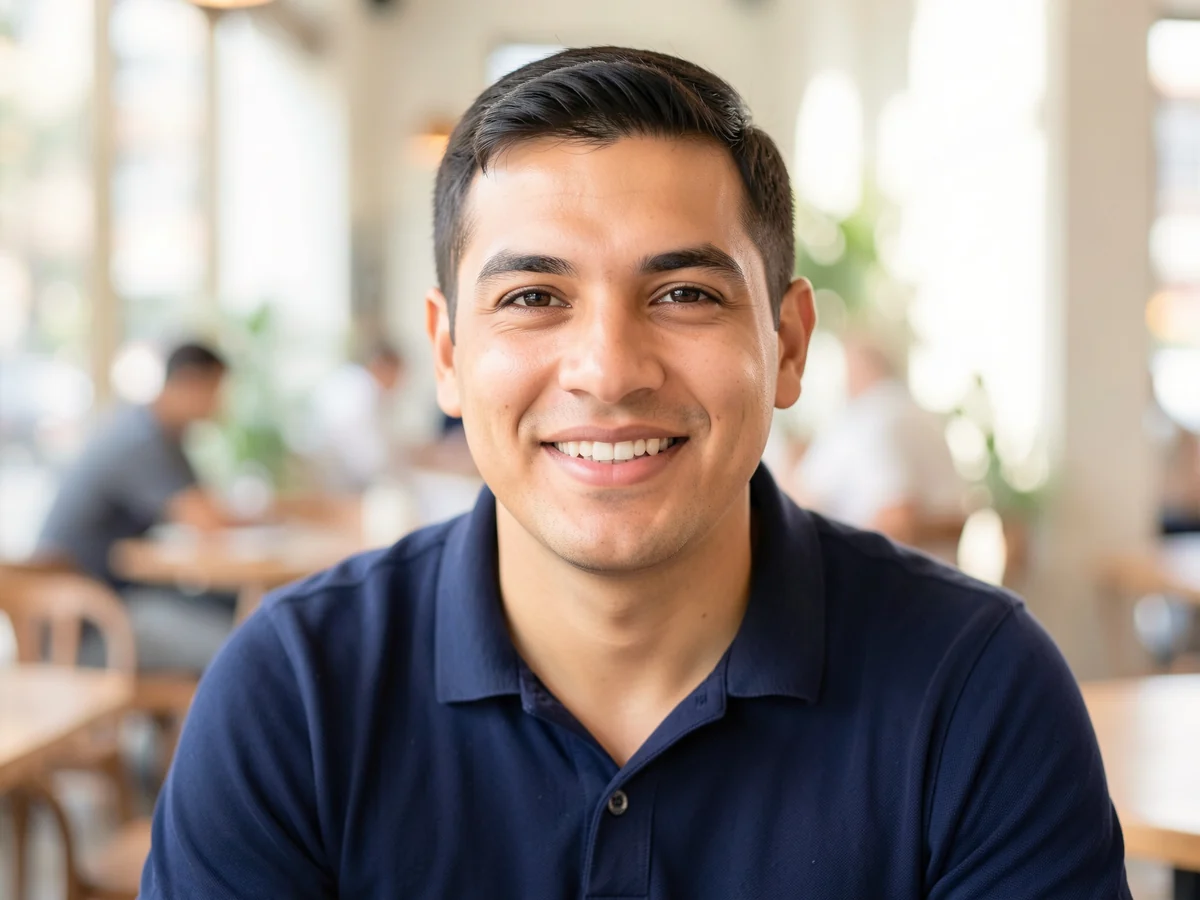
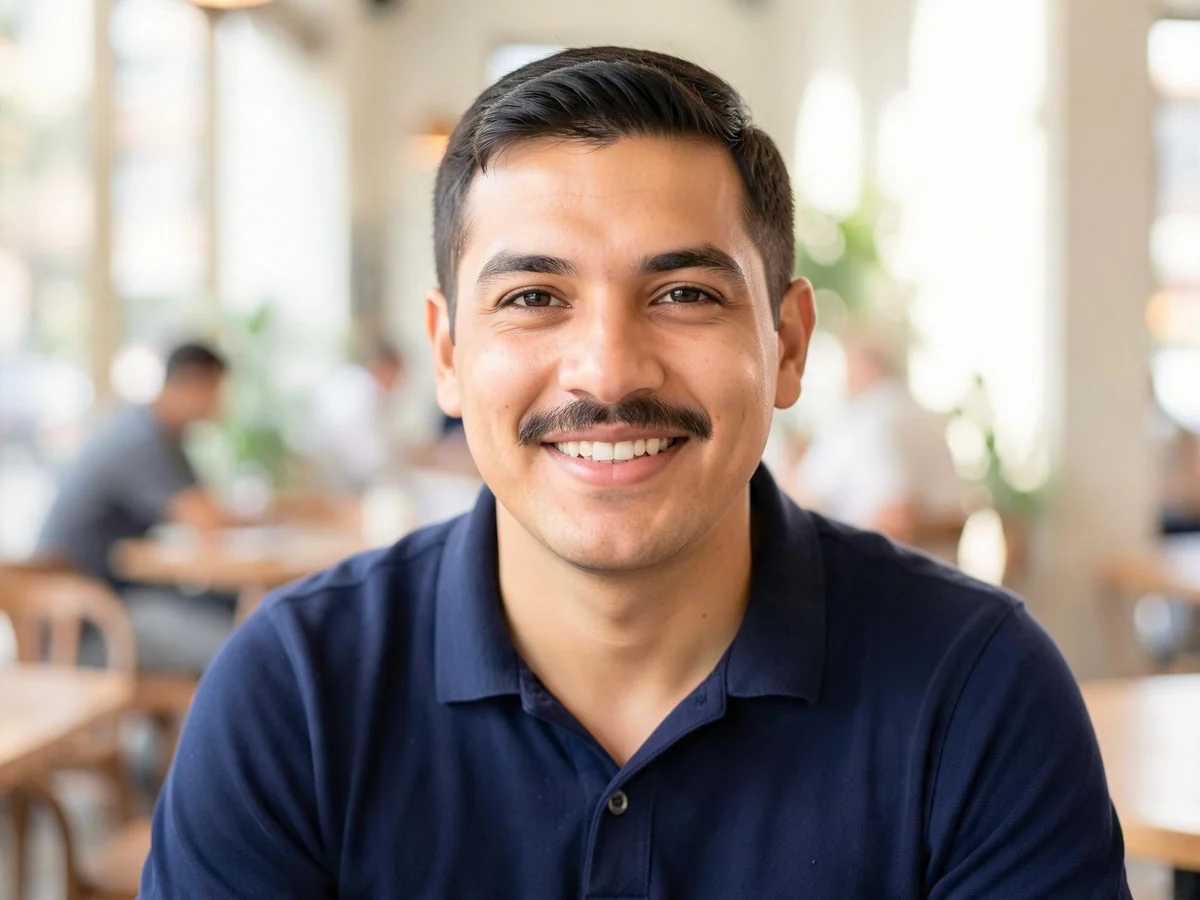
An AI photo editor changes one part of a photo from a sentence and leaves the rest as it was. No selection, no masks, no layers: the sentence does that work for you. Here Seedream 5.5 added a natural mustache, and his face, his shirt and the café behind him stayed the same.
Using AI to edit images comes down to one photo, one sentence and one change. To restyle the whole picture instead, like an AI filter for photos that turns it into a watercolor or a comic, use Image to Image.
What you can change in a portrait
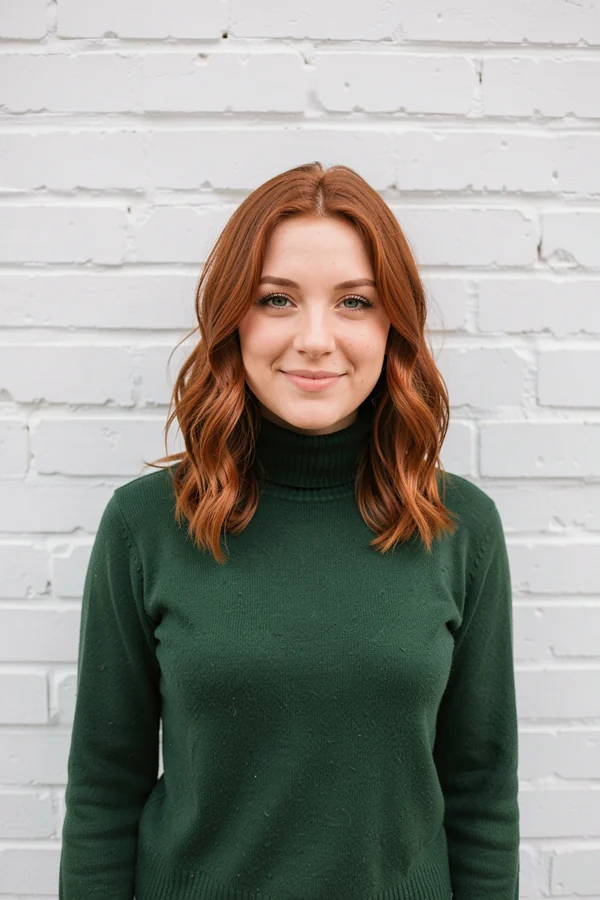
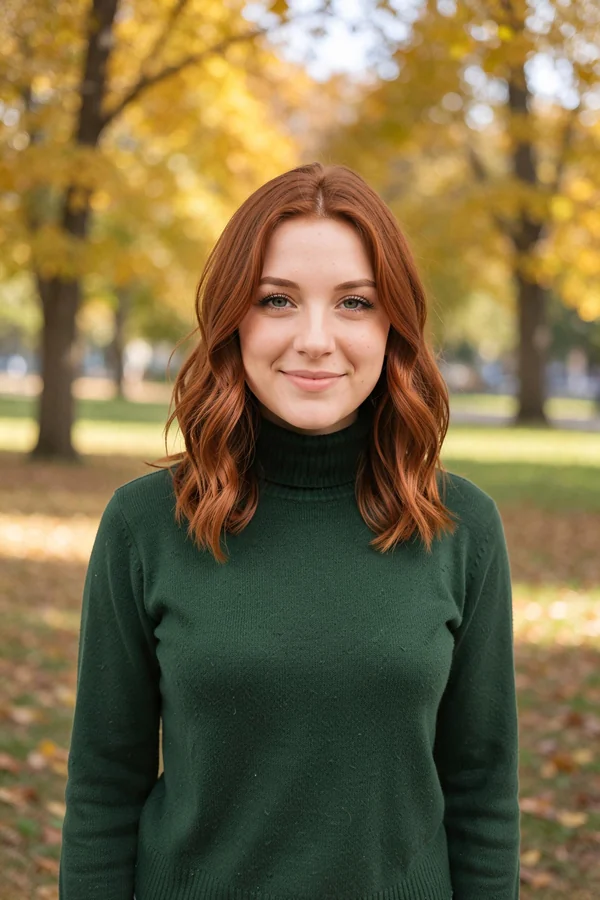
Background
Keep the person, change the place. She moved from a white brick wall to an autumn park with the same pose, light and framing: an AI background changer for profile pictures and holiday shots.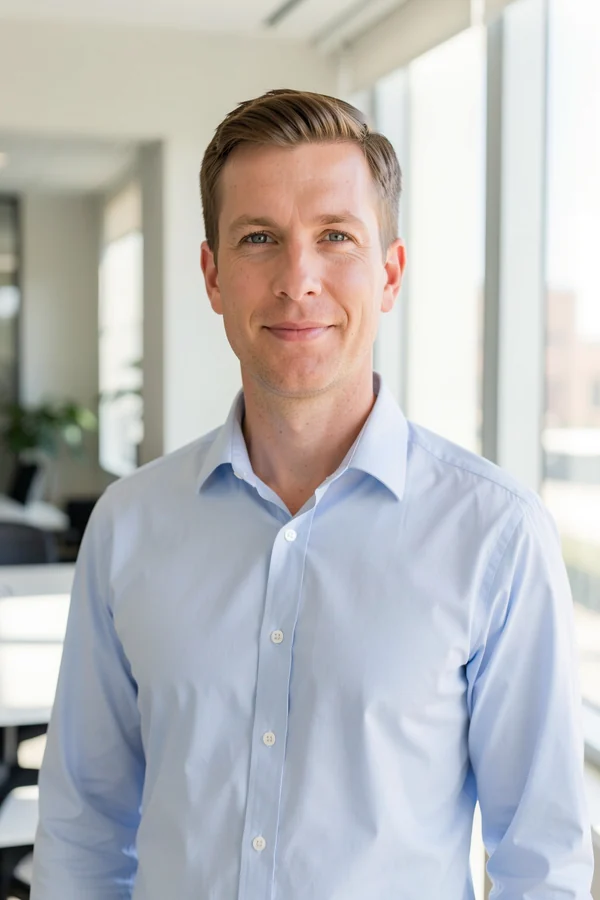
Outfit
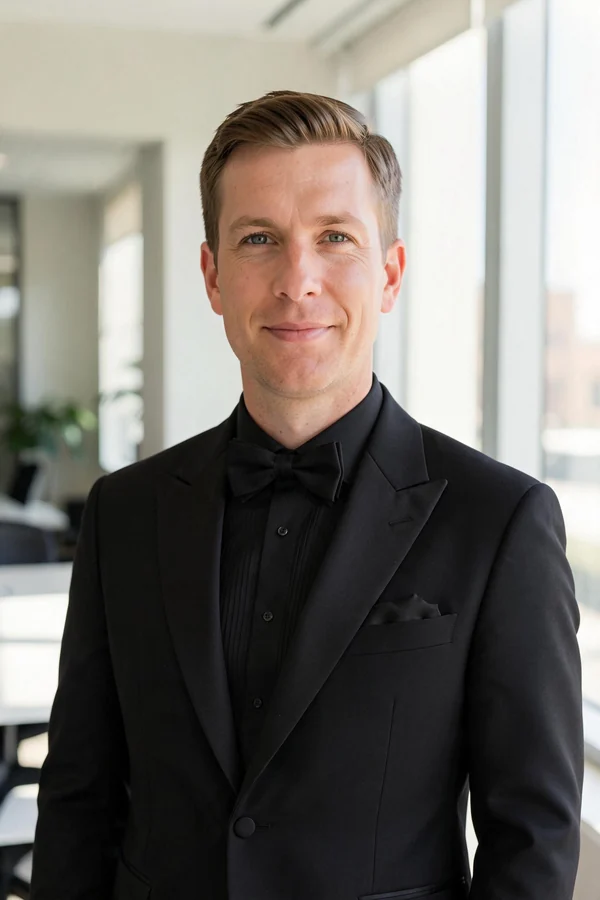
A light blue office shirt became a black tuxedo with a bow tie, and the office behind him stayed. To try on whole outfits, use the AI Clothes Changer.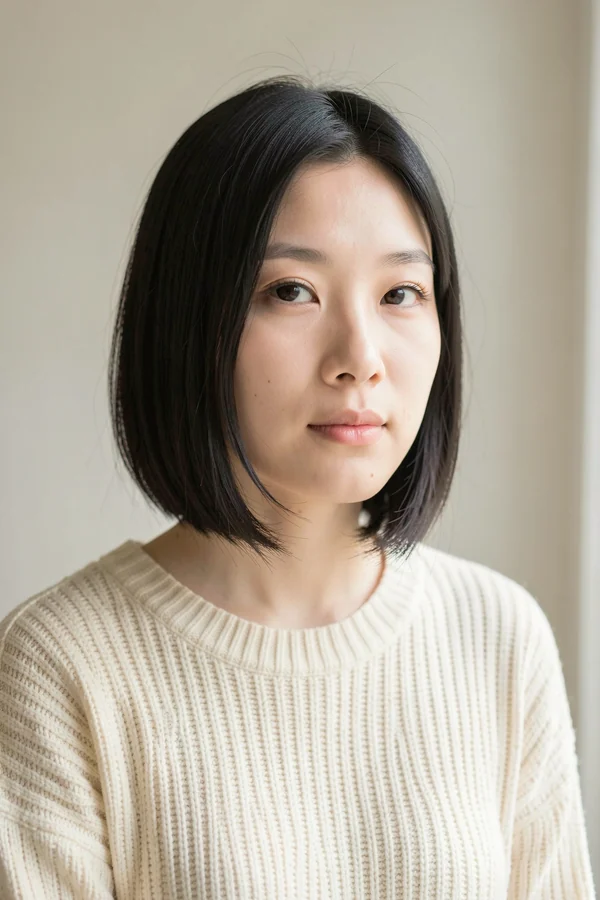
Hairstyle
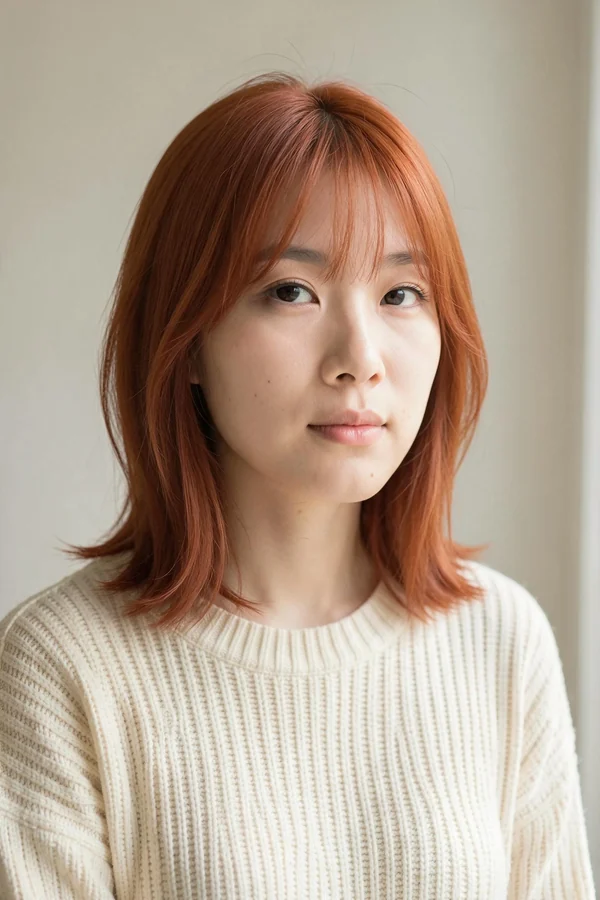
Short black hair became a copper bob with curtain bangs; her face and sweater did not change. For more cuts and colors, open the AI Hairstyle Changer.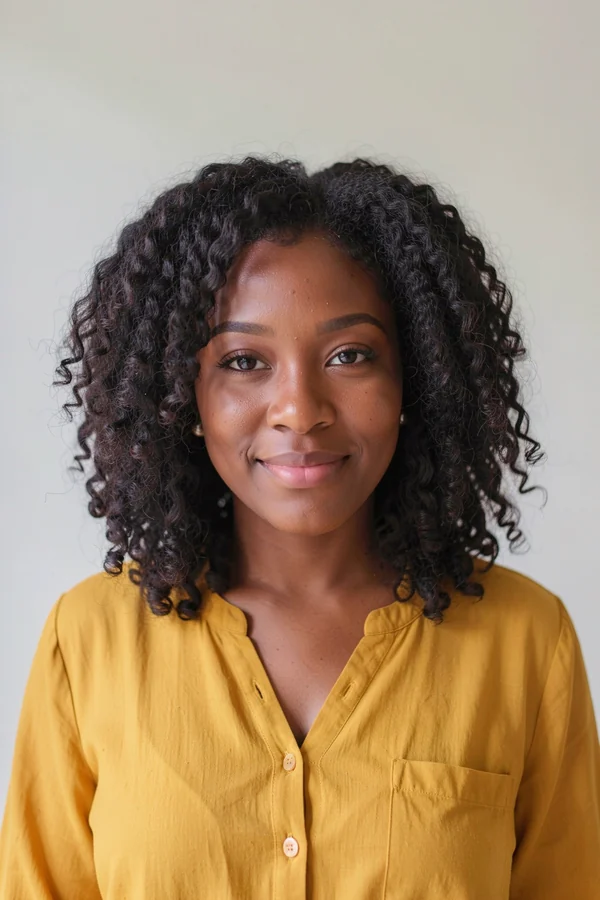
Age
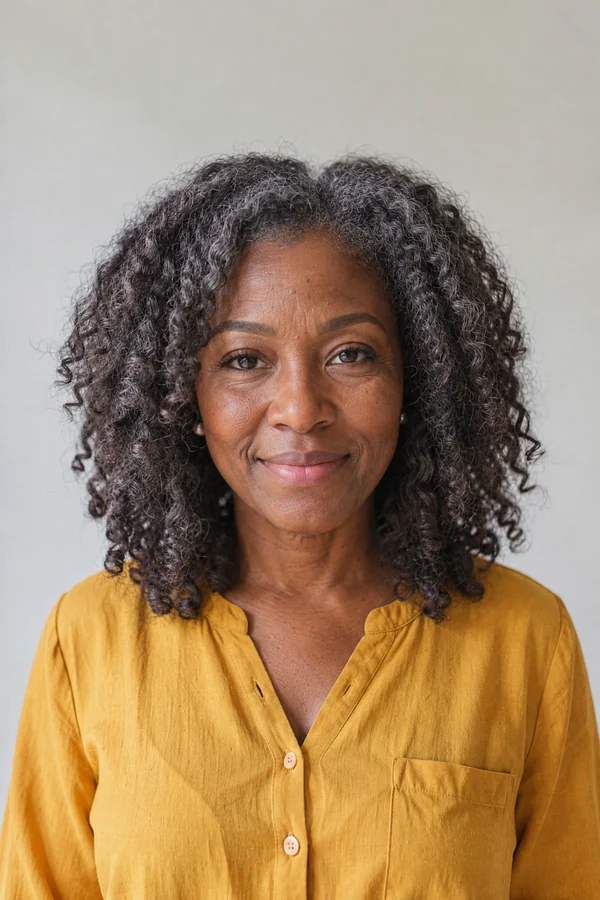
About thirty years older on GPT Image 2.5: fine lines and grey curls, with the same face, hairstyle and blouse.
Got a photo with one thing you would change?
How to keep every edit precise
Multi-turn editing
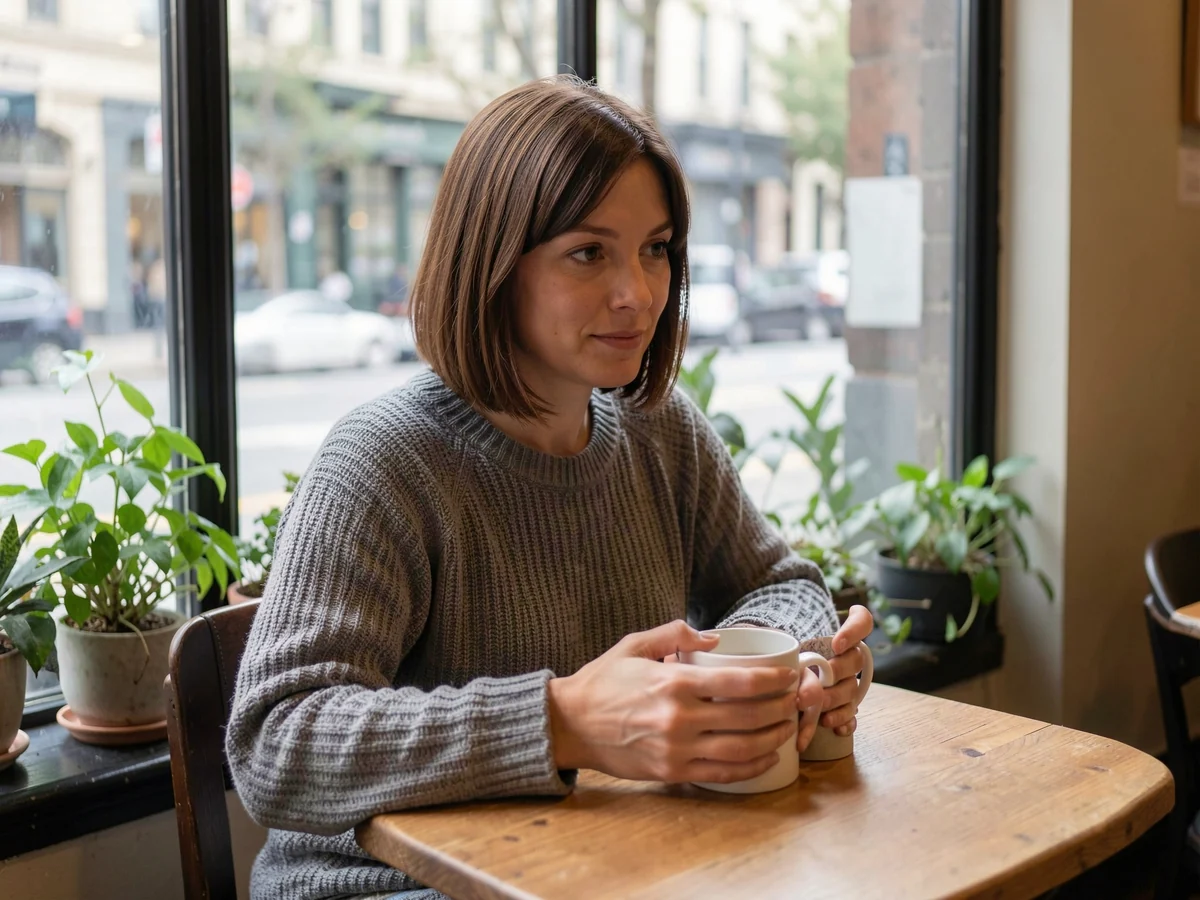
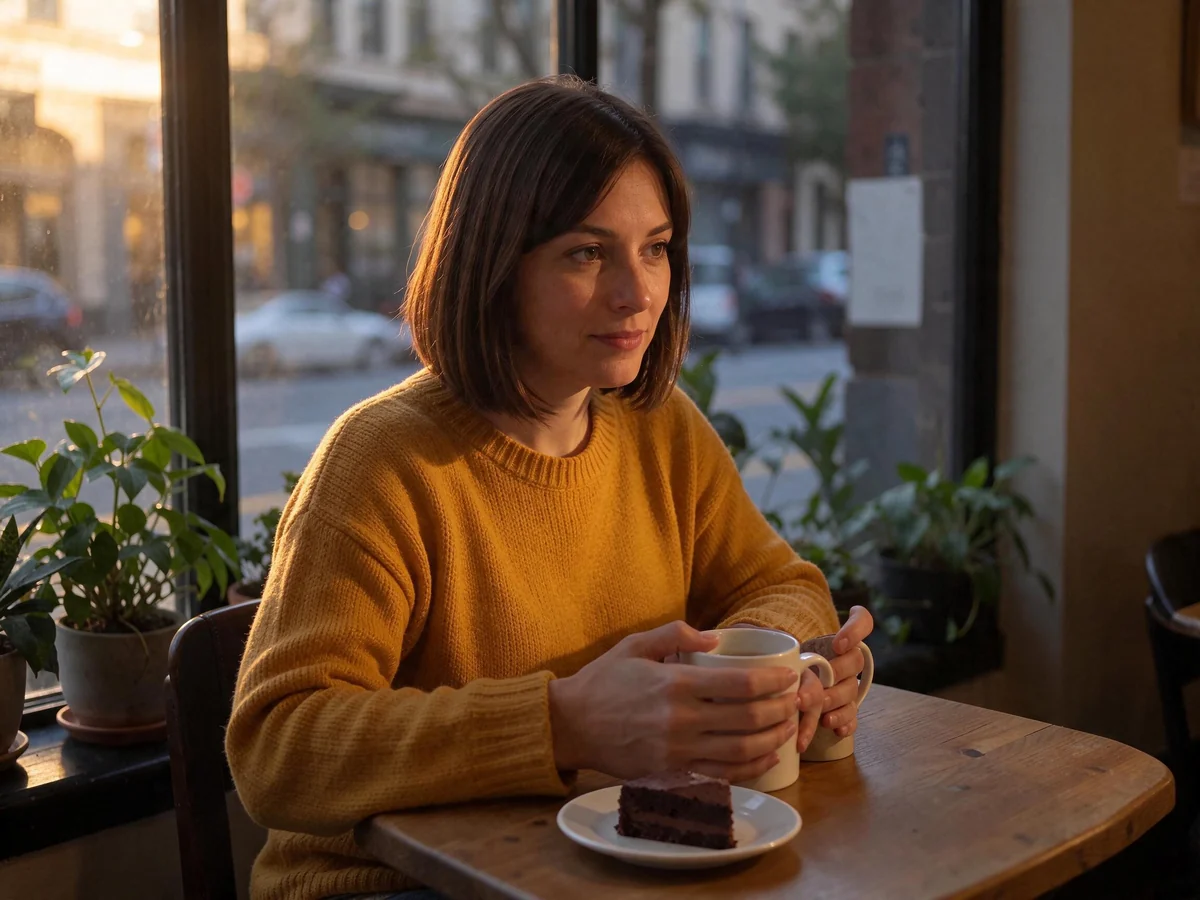
Change one thing at a time and keep going from the result: each round only touches what you name. This photo went through three rounds on Seedream 5.5. The grey sweater turned mustard yellow, the light turned to a warm evening, and a slice of chocolate cake appeared on the table, while her face, her hands and the mug never moved. A finished edit can go straight into the next one.
Multi-image reference
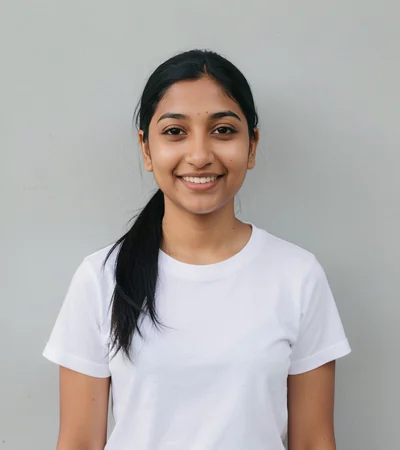
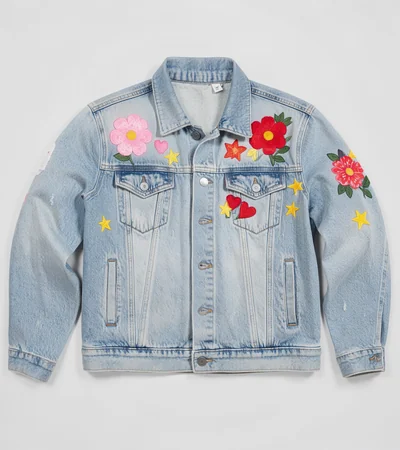
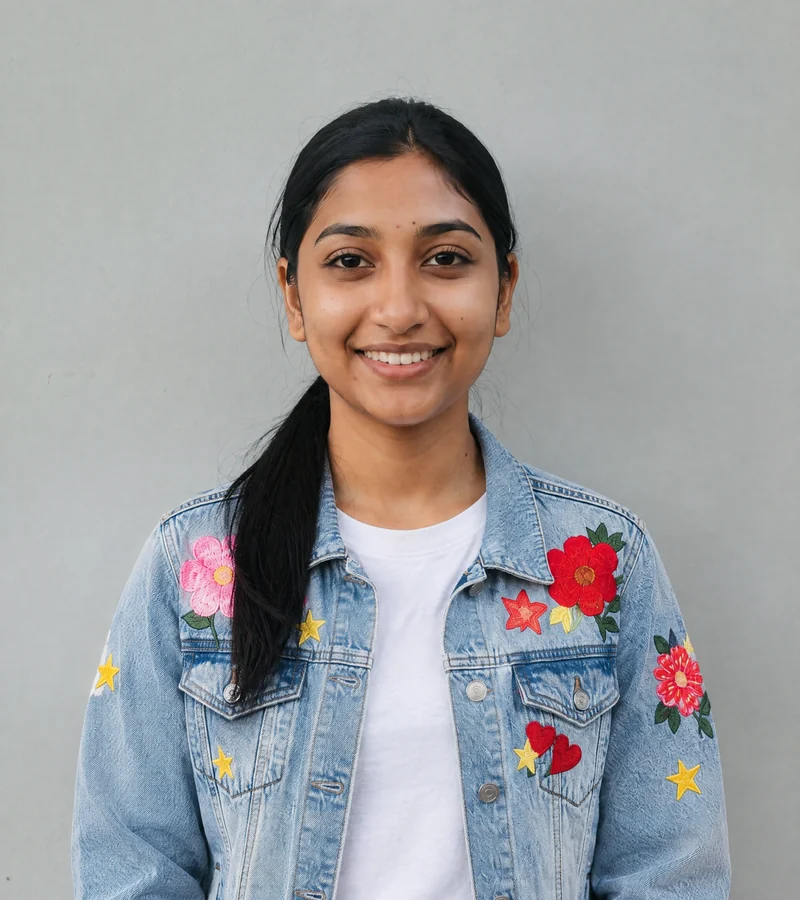
Some things are easier to show than to describe. Add your photo first and a picture of what you want second. Here the second photo is a flat-lay denim jacket with embroidered flowers, hearts and stars, and GPT Image 2.5 put that jacket on the woman from the first photo, with the patches in the same places and her face and ponytail unchanged.
How to edit photos with AI
Upload a photo
Give the AI photo editor any photo: pick a sharp, well-lit one where the part you want changed is easy to see. To copy something from another picture, add that one too, after your own.
Write what changes and what stays
Name the change, then what must not move: “make the sky a pink sunset, keep the people exactly as they are”. An AI photo editor prompt needs nothing more.
Pick a model
Seedream 5.5 is the default. The model cards below show which one suits which edit.
Generate and keep going
Download the version you like, or edit the result again: you can edit an image with AI one change at a time.
Why choose Plimo as your AI image editor
No editing software to learn
No selection tools, masks or layers: this AI picture editor works from a sentence.Another model, same photo
Seven models bring AI for image editing to one account, so when one misreads the request, run the same photo on another.Templates for popular edits
Each template comes with a tested prompt, so you can edit without writing one.Free to start, no watermark
New accounts get 100 free credits, and edits download without a watermark.
AI image editing models on Plimo
Seedream 5.5
ByteDance's newest model and the default here, for multi-turn editing: each round changes what you ask and leaves the rest as it was. It also cuts a subject out onto a transparent background.
Plimo Image 1.0
The quick one for everyday fixes: a new background, a different outfit, a brighter face. Not for changing words in the picture.
Nano Banana 2.1
Google's model, for putting people from several photos into one believable scene, like a group shot nobody was all there for.
GPT Image 2.5
OpenAI's model, for edits that touch lettering, like a typo on a sign or a label, and for cutting a subject out onto a transparent background.
GPT Image 2.6
OpenAI's newest model, for the most careful edits: it changes only the part you point to.
Qwen Image 3.0 Pro
Alibaba's model, for changing dense text and layouts, like the prices on a menu.
Grok Imagine Image 2.0
xAI's model, for precise edits to your own photos and for signs whose words need to read right.
AI photo editing beyond portraits
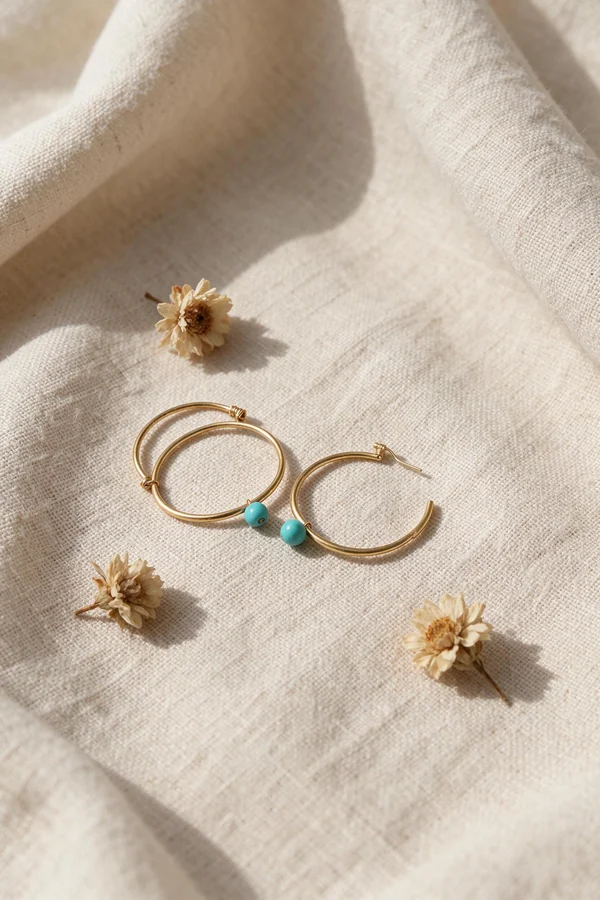
Product photos for a shop
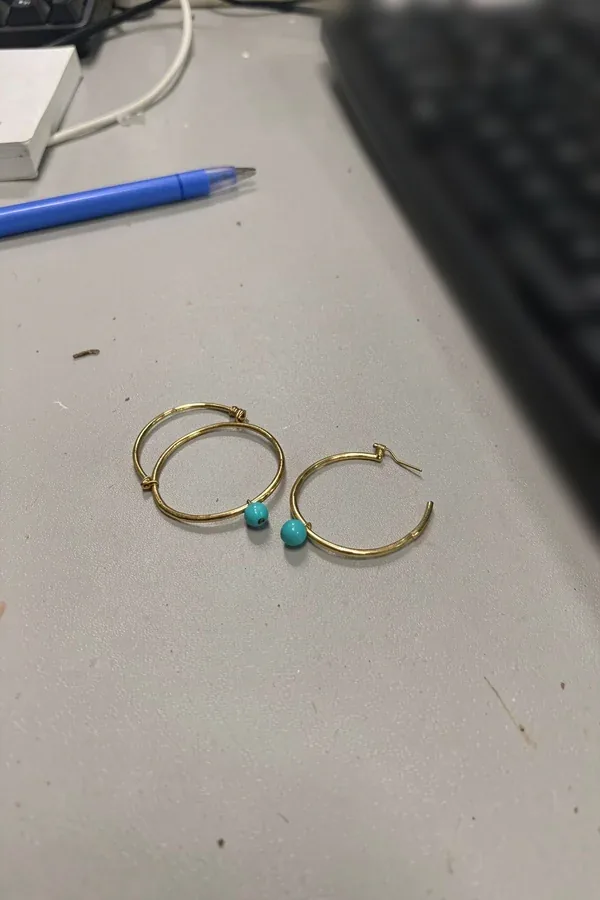
Gold hoop earrings on a grey office desk moved onto beige linen with dried flowers, and the earrings stayed exactly as they were. An AI background generator for shop listings, no light box needed.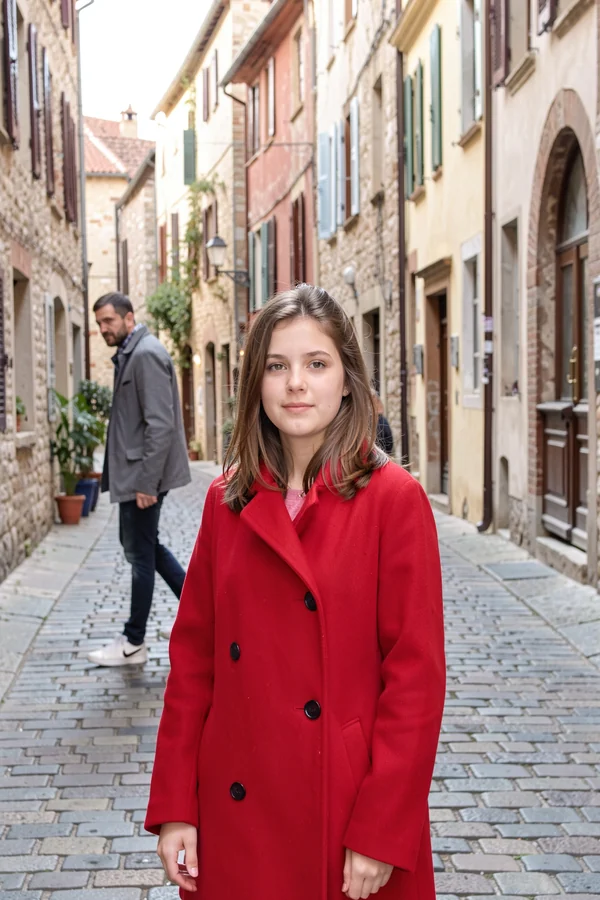
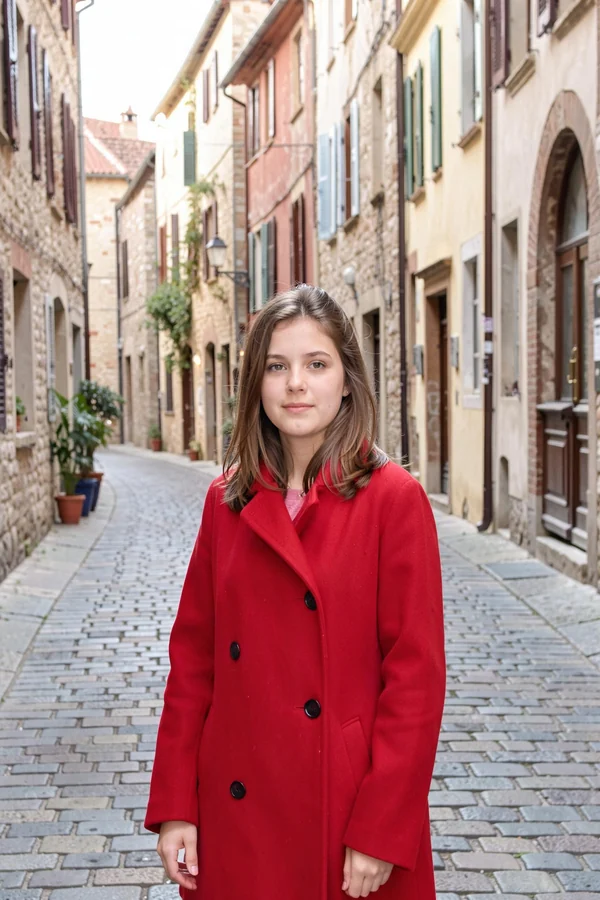
Passers-by removed
The passers-by behind her were removed, and the woman in the red coat, the houses and the cobblestones stayed. Use Seedream 5.5 for this kind of edit.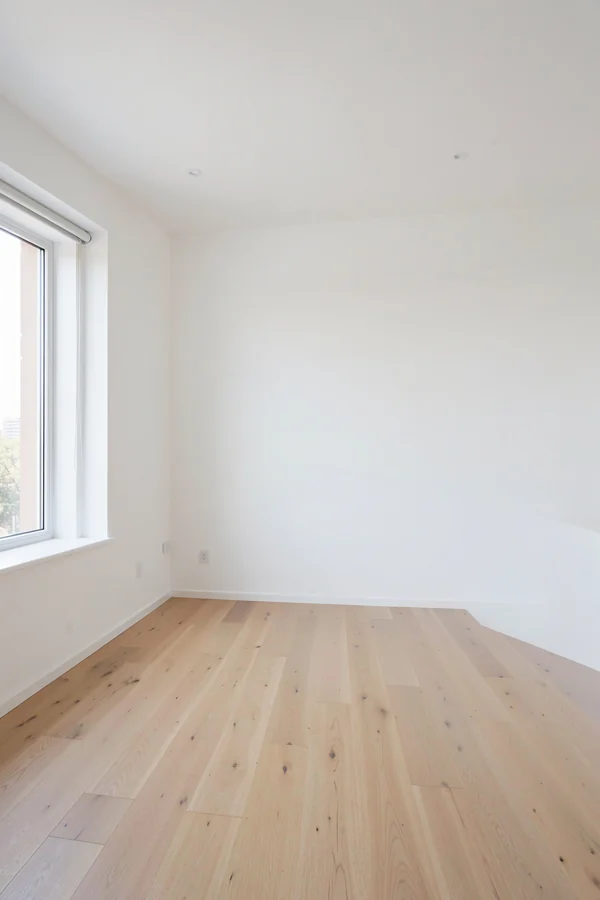
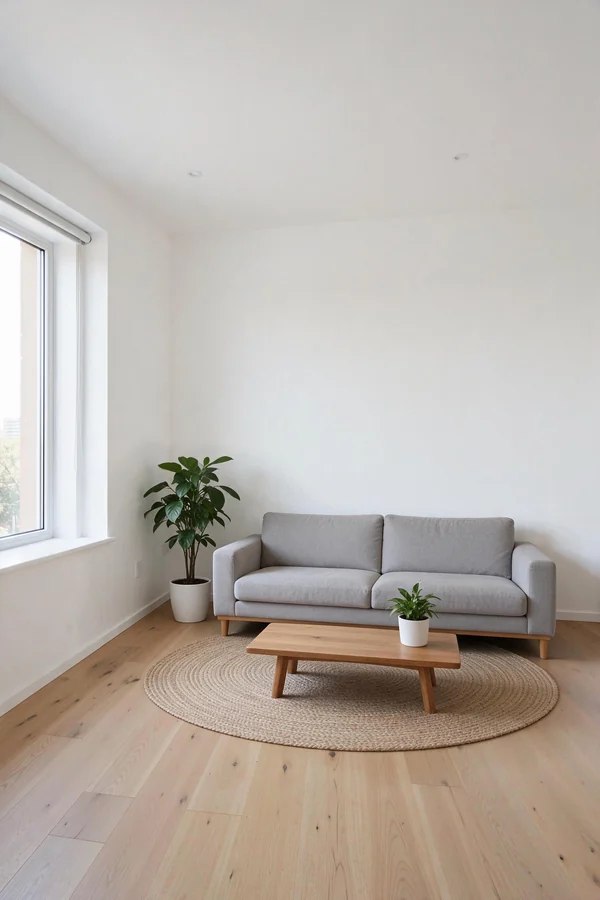
An empty room, furnished
A grey sofa, a round rug, a coffee table and two plants went into an empty living room; the walls, window, floor and camera angle stayed. Handy when you are planning a move or renting out a flat.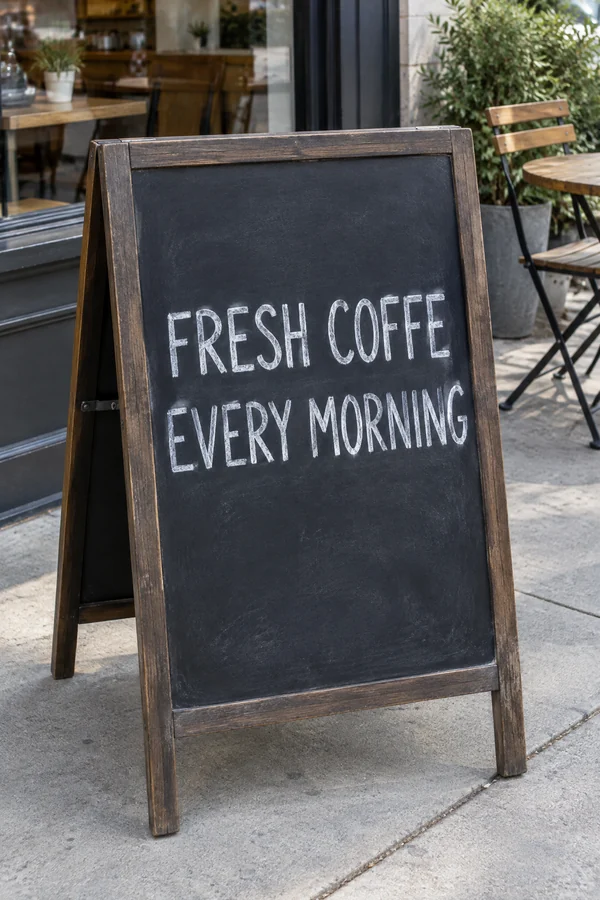

Typos fixed
For lettering, use GPT Image 2.5 or Qwen Image 3.0 Pro. Here GPT Image 2.5 turned FRESH COFFE into FRESH COFFEE and kept the chalk lettering and the street as they were.