AI Image Generator: Try It Free and Create AI Pictures from Text or Photos
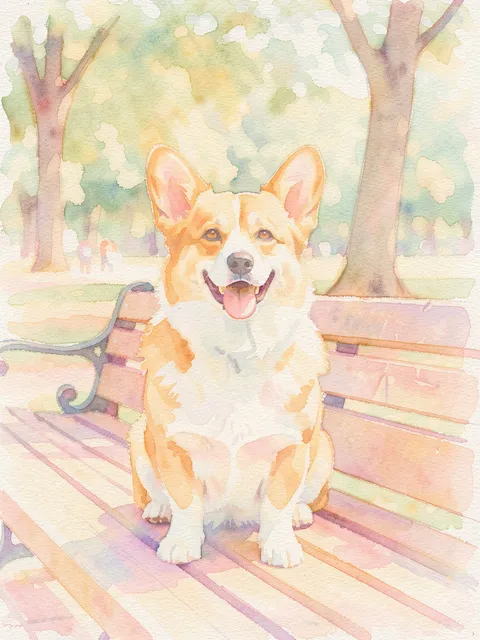
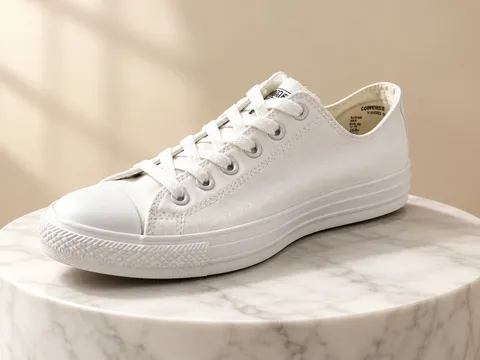
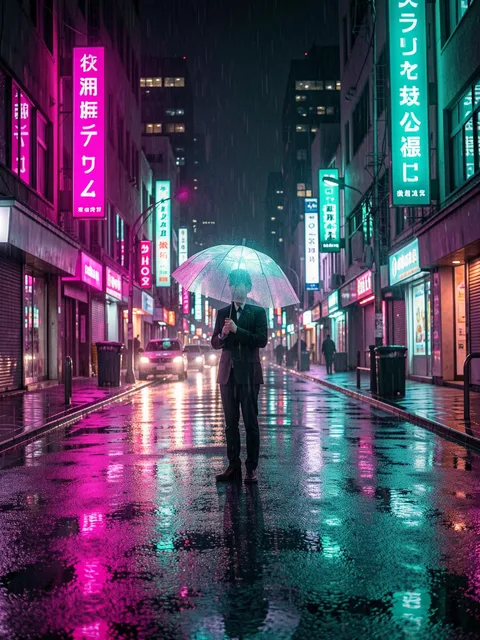
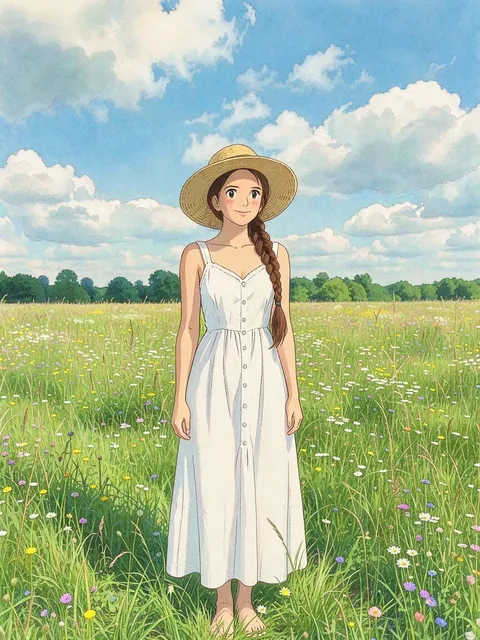
Image creation with this AI image generator
Type the picture you have in mind, or hand Plimo a photo you already took, and this AI image creator makes a new pic with the model you picked. Every AI-generated image lands in My creations, ready to download or run again.
Text to image from one plain sentence
Describe the picture the way you'd describe it to a friend, saying who's in it and where they are. One sentence is enough for a first pass, whether you want an AI drawing, a realistic photo-style shot or a quick design. Once you see what came back, add the detail it missed and run it again.Image to image AI that starts from your photo
Put a photo in the slot next to the prompt and the model works from it instead of a blank canvas, which is how a snapshot of your dog becomes a watercolor. If you came looking for an AI image generator from image uploads, this is the same box.Image models from several makers in one menu
The model menu groups image models by maker, from Plimo Image 1.0 to GPT Image 2.5 and Qwen Image 3.0 Pro. Each reads the same prompt a little differently, so switching models is the simplest way to get a second take.Templates for days you'd rather not write
The Templates tab under the generator holds ready-made ideas that follow what's trending. Open one, add your photo and press one button, since the wording and settings are already worked out.
How to make AI generated images on Plimo
Describe what you want
Type your idea into the prompt box at the top of this page, in everyday words.Add a photo, or skip it
The photo slot sits to the left of the prompt (above it on a phone). Leave it empty for text to image, or click it to sign in and drop in pictures for the model to build on.Choose a model and a shape
Open the model menu for a different model, and the settings next to it hold the picture shape plus whatever else that model offers, like resolution or quality.Press Generate
The button shows how many credits this run will use. If you haven't signed in yet, use a Google account or an emailed code.Open it in My creations
The finished picture shows up below the generator under My creations, where you can download it, remake it with changes or delete it.
Why make your pictures with Plimo
100 credits to start with
New accounts get 100 free credits one time, and those credits never expire. Signing up takes a Google account or an emailed code, with no card asked for.You know the cost before you commit
The credit count on the Generate button updates as you change the model, the resolution or the number of reference photos. If a generation fails, the credits go straight back to your balance.Side-by-side model comparisons
Run one prompt through Nano Banana 2.1 and then FLUX 3 Image, and both results sit next to each other in My creations. You don't need a separate AI generator account for each model.Photo ideas without prompt practice
If you wanted an AI photo generator but froze at the empty text box, start from a template. Each one carries a tested prompt, so all you bring is the photo.Clean, usable files for members
Members get images without a watermark and can use them commercially. Their creations also stay in the account longer, from 30 up to 360 days depending on the plan.
Image models on this page
Each model shows only the settings it supports, so the options under the prompt change when you switch.
Plimo Image 1.0
Plimo Image 1.0 covers scenes, characters, illustrations and products, takes up to 4 reference photos and uses the fewest credits per picture, though lettering inside the image can come out garbled.
GPT Image 2.5
GPT Image 2.5 from OpenAI writes legible text and makes careful edits from up to 16 reference photos, and it can save a transparent PNG for stickers or a logo mockup.
Nano Banana 2.1
Nano Banana 2.1 from Google renders fine detail at three resolution settings and can blend up to 6 photos into a single scene.
Seedream 5.0 Pro
Seedream 5.0 Pro from ByteDance makes polished images and edits, and it can draw on up to 10 reference photos at once when one isn't enough to show what you mean.
FLUX 3 Image
FLUX 3 Image from Black Forest Labs gives detailed results in all the common aspect ratios, follows up to 10 reference photos and matches the shape of the first one when the ratio is left on Auto.
Qwen Image 3.0 Pro
Qwen Image 3.0 Pro from Alibaba handles dense text and layouts like posters and infographics, takes up to 3 reference photos and keeps the aspect ratio you chose even after you add them.
Pictures people actually make with it
A poster for your wall or your band's next gig
Describe a rain-soaked street at night with someone under a glowing umbrella, then swap in your own city or character. No photo is needed. If you want a title on the poster, put the exact words in your prompt and choose GPT Image 2.5 or Qwen Image 3.0 Pro.Listing photos for a small online shop
Shoot the candle or mug on your kitchen table, add the photo and ask for it on a white marble pedestal in soft window light. Selling with these photos needs a membership, because pictures made without one are for personal use.Your cat or dog as a watercolor
Upload a sharp photo where your pet's face is easy to see and ask for a watercolor with soft edges and paper texture that keeps its markings and pose. A small print looks lovely in a frame.Yourself as an animated movie character
Add a clear selfie and ask for a glossy 3D animated character with soft studio lighting that keeps your face shape, eyes and hairstyle. It makes a fun profile picture that friends still recognize.A birthday caricature for the group chat
Pick a photo of the birthday person where they're smiling and ask for a caricature with an oversized head and an even bigger grin. Ask them first, since it's their face going around the chat.A hand-drawn anime version of you
Add a photo of yourself and ask for a hand-drawn anime look with soft linework, gentle shading and a pastel afternoon sky, keeping your pose and outfit. Outdoor shots with some sky behind you suit the style.A palm reading chart for a laugh
Photograph your open hand in good light with the lines clearly visible, then ask for a clean chart that labels the four major lines with a short reading for each. GPT Image 2.5 keeps the small text readable. Take it as a laugh, not a forecast.A boxed toy version of you
Add a full-length photo and ask to be sealed in a toy blister pack with your own outfit and a few tiny accessories, shot like a product photo on a desk. If you want the box to spin on camera afterwards, take the result to image to video.