FLUX AI Image Generator: Detailed Pictures and Short Clips with FLUX 3


What is FLUX?
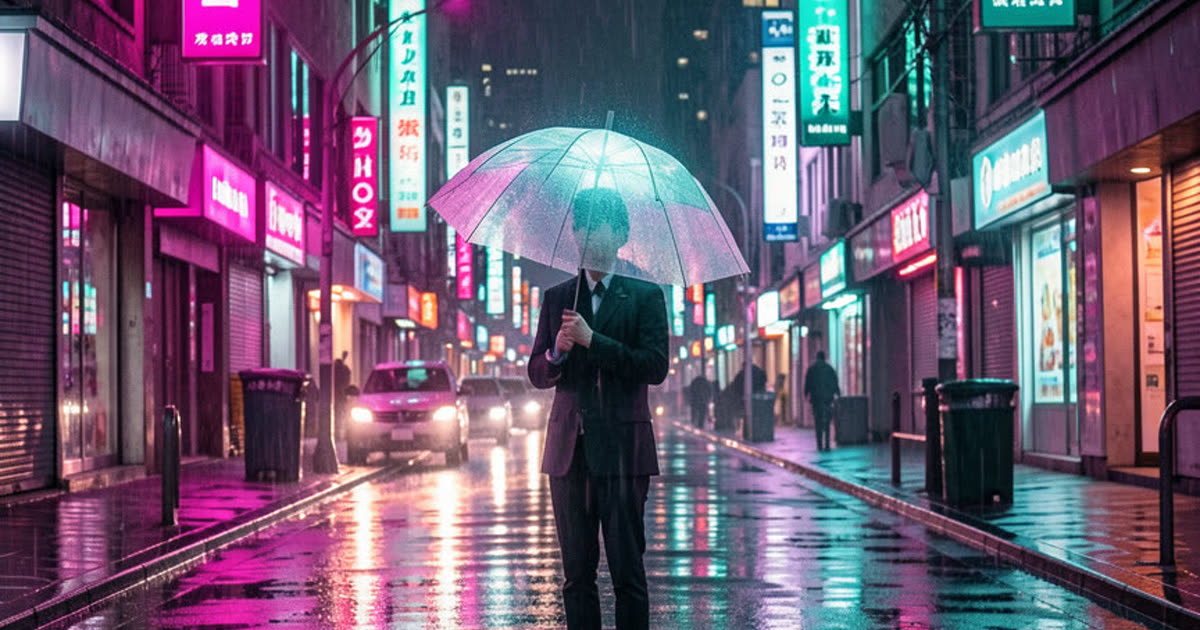
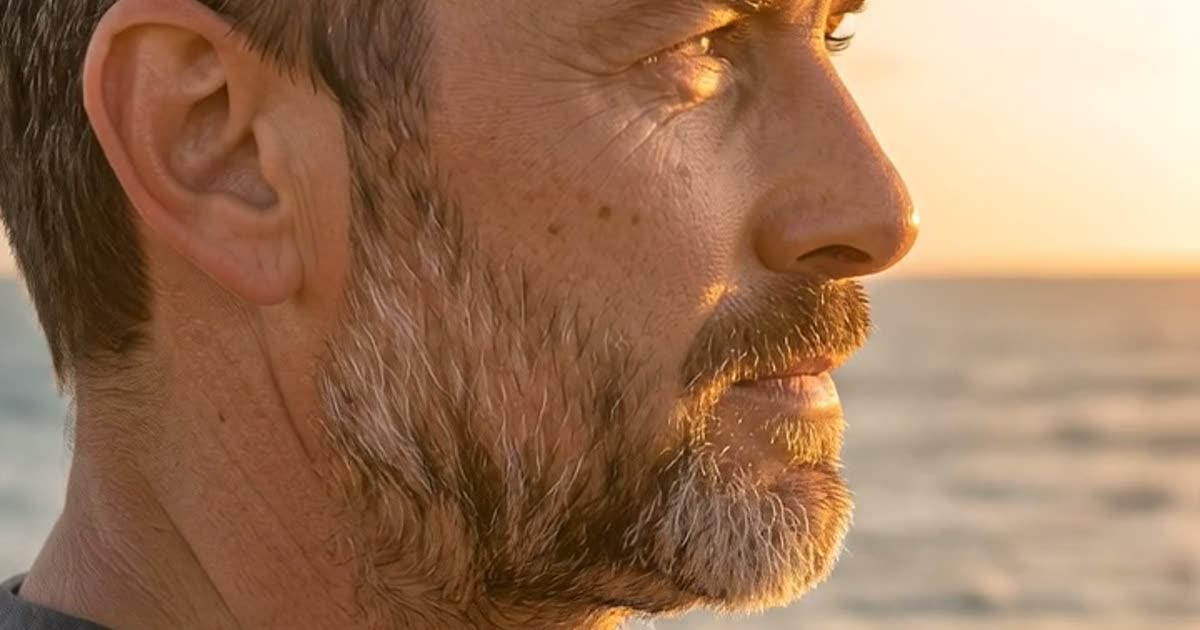
FLUX is the model family from Black Forest Labs, a German lab whose image models are known for fine detail and for sticking closely to long, specific prompts. Plimo runs both sides of its newest generation: FLUX 3 Image for pictures and photo edits, and FLUX 3 Video for short clips. The generator above opens in image mode, so it works as a FLUX image generator straight away; switch to video whenever you want the scene to move.

FLUX 3 Image
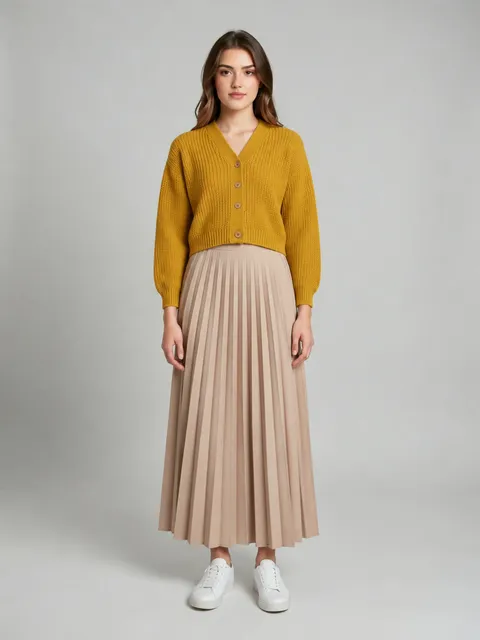
Detailed images in every common shape, guided by up to 10 reference photos.
- 1K / 2K
- Up to 10 reference photos
From 21 credits
FLUX 3 Video
Clips up to 20 s, plus a cheap draft mode for rough previews.
- 5–20 s
- Draft / 720P / 1080P
- Sound on or off
From 135 credits
A short history of FLUX
August 2024
FLUX.1
The first release from Black Forest Labs came as pro, dev and schnell, and stood out for following prompts closely and drawing legible lettering.
May 2025
FLUX.1 Kontext
Kontext, sold as FLUX Kontext Pro and Max, let you prompt with an image as well as text, so FLUX could change one part of a picture or keep a character recognizable in a new scene.
November 2025
FLUX.2
A new generation released as FLUX 2 Pro, Flex and Dev, with FLUX 2 Max added later. It could blend up to 10 reference images, work at up to 4 megapixels and render small, dense text.
July 2026
FLUX 3
The first FLUX trained on images, video and audio together. It took the family into video, with clips up to 20 seconds that carry their own sound, next to a new image model with sharper multilingual text.
How to use FLUX on Plimo
Write what you want to see
The generator starts on FLUX 3 Image. Describe the subject, the light and the style in plain words; long, detailed prompts are fine, since this model is built to follow them.Add reference photos if you have them
Sign in and drop in up to 10 photos of a product, a person or a look you like. With the shape set to Fit photo, the picture copies the proportions of your first photo.Switch to video for motion
Press Video above the prompt and FLUX 3 Video takes over. Put a picture in the first frame, and if you like a second one in the last frame, then choose a length between 5 and 20 seconds.Check the price and generate
The Generate button shows the credits for the exact size, length and quality you picked, and they come back if a run fails.Pick up where you left off
Your result lands in My creations under the generator. Download it, or press Remake to load the same prompt and settings and try a different take.
Why use FLUX on Plimo
Pictures and clips from one family
FLUX 3 Image and FLUX 3 Video sit on the same page and in the same generator. Download a still you like from My creations, switch to video and upload it as the first frame, and the clip opens on that exact picture.Room for ten reference photos
Few image models here take as many references as FLUX 3 Image. That helps when one product needs to look the same from every angle, or when you're mixing a face, an outfit and a setting.A cheap draft before the real clip
FLUX 3 Video has a draft quality meant for rough previews. Test the motion there first, and only spend more credits once the idea works.Other makers one click away
If a FLUX picture misses, keep the prompt and switch to Nano Banana 2.1 or Seedream 5.0 Pro in the model menu, then compare both results in My creations.Ready for paid work
When you generate FLUX images and videos as a member, they come without a watermark and can be used commercially, for a client, a shop or an ad.
FLUX compared with other image models
Nano Banana
Google's Nano Banana is fast and good at keeping a face consistent through edits, mixing up to 6 photos, and Nano Banana 2 runs on free credits; FLUX 3 Image takes more references and needs a membership.
GPT Image
GPT Image 2.5 from OpenAI is the careful editor of the group, with crisp lettering, transparent PNGs and up to 16 photos, while FLUX 3 Image leans toward rich detail across many styles.
Grok Imagine
xAI's Grok Imagine also covers both pictures and video, known for lively motion in its clips; its image models take 3 or 5 photos for edits, against 10 on FLUX 3 Image.
Seedream
ByteDance's Seedream comes in three tiers, from a low-cost Flash version that free credits can run up to a Pro version that, like FLUX 3 Image, follows up to 10 reference photos.
Qwen Image
Qwen Image 3.0 Pro from Alibaba is the one for posters and infographics packed with text, with up to 3 photos; FLUX 3 Image accepts more references and wider shapes, including 21:9.
What people make with FLUX
Product shots on a fresh background
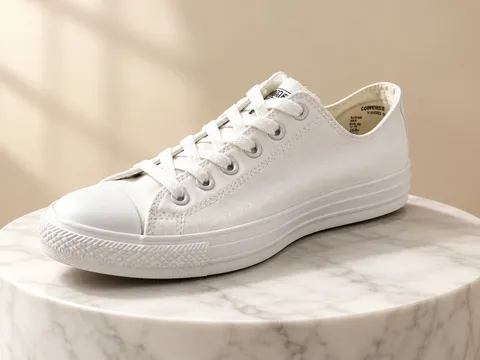
Upload a few phone photos of a mug, a sneaker or a candle from different sides, then describe the scene you want, like morning light on a marble counter. The extra angles help FLUX keep the shape and label right.A wide banner for your channel
Set the shape to 21:9 and describe a calm landscape with space on one side for your name. It fits the top of a YouTube channel or a newsletter header.A room makeover from your own photos
Upload a photo of your living room plus shots of a sofa, a rug and a lamp you're eyeing, up to ten pictures in all, and see the room restyled before you buy anything.A still that turns into a clip
Make a picture with FLUX 3 Image, download it, then switch to video and upload it as the first frame, so the FLUX AI video generator picks up exactly where your still left off. Describe what happens next, like steam rising from a cup.From bud to bloom
Put a photo of a closed flower in the first frame and an open one in the last, and FLUX 3 Video fills in the movement between them, with sound on unless you mute it.A short scene with spoken lines
Describe two people at a bus stop and put one line of dialogue for each in quotes. FLUX 3 Video makes the sound together with the picture, so the voices and street noise arrive in the same clip.Testing a video idea cheaply
Run a scene at draft quality to check the camera move and timing, then generate the same prompt again at 720p or 1080p once you're happy.