AI Headshot Generator: Turn a Selfie into an AI Professional Headshot, Start Free
What this AI headshot generator makes from one photo
Pick a headshot style from the templates below, add one clear photo of yourself, and get a studio-style portrait with a clean background, soft light and your face kept recognizable. Prefer to describe it yourself? Add your photo to the generator and write the outfit, backdrop and framing you want.
Professional headshots
A chest-up portrait in a blazer or a crisp shirt, against a plain grey, white or office backdrop, lit like a studio session. It's the kind of professional photo people want on LinkedIn, a company website or a speaker bio, made from a selfie you already have.AI profile pictures that look like you
The same photo can become a friendlier AI profile picture for Slack, Teams, GitHub, a dating app or your personal site. Ask for a warmer background, a relaxed smile or casual clothes, and add a line asking the model to leave your face, skin tone and hairstyle alone.An AI photoshoot, without the studio
The Portraits tag also has editorial, outdoor and lifestyle looks. Each template is one look, so trying a few feels like a small AI photoshoot built around one picture of you.A white-background ID photo style
There's a template for a plain white background, a straight-on pose and even light, the look of an ID photo. Treat it as a draft: passport and visa rules differ by country, so check the official size and background rules before you submit anything.
How to make an AI headshot
Open the Templates tab
Under the generator, the Templates tab opens on Images and Portraits, with the professional headshot styles first and the ID photo style right after them. Scroll further for editorial and lifestyle portraits.Pick a style and add your photo
Click a template and add your selfie in the window that opens, then press Generate there. A photo you added to the main generator earlier doesn't carry over, so add it in the template window.Or write your own headshot
Prefer full control? Add your photo to the slot beside the prompt box (above it on a phone) and describe the result, for example “navy blazer, light grey studio background, soft light, chest-up framing, keep my face unchanged”.Check the cost
GPT Image 2.5 is selected when the page opens. One photo plus the default settings comes to 16 credits a picture, and that figure is on the Generate button before you commit. When asked, sign in with Google or a one-time email code.Keep your favorite
Every headshot lands in My creations under the generator. Save the one that looks most like you, or hit Remake to bring back the same photo and settings, then generate again for another take.
Why make your headshot on Plimo
A professional headshot from a photographer usually means booking a session, picking an outfit and paying for every retouched shot. Here your AI professional photo starts from a selfie, and you pay per picture in credits.
Free credits to start
Each new account starts with a one-off 100 credits that don't expire. A GPT Image 2.5 headshot from one photo uses 16, so that's about 6 headshots, or over 30 on the cheaper Plimo Image 1.0.Styles ready to use
You don't have to know how to write a prompt. Each headshot template already describes the outfit, backdrop, lighting and framing, so you only add your photo.One photo is enough
Some headshot services ask for 10 or 20 selfies and train a model on your face. Here each result comes from the one photo you add, and you can switch styles straight away.Compare more than one model
If one model softens your features or changes your hair, run the same photo through another and keep the closest match. All three run on free credits at their default settings.Credits come back on a failure
The price is printed on the Generate button, so there are no surprises. If a generation fails, or the model turns your photo down, the credits go straight back to your balance. One exception: if you wrote your own prompt and our content check blocks the result, those credits aren't returned.We don't train on your photos
Plimo doesn't train models on your selfies or the headshots you make, and the companies behind each model handle requests under their own terms. Each result is stored at a long, random link that anyone you share it with can open.
AI models for professional headshots
All three models take your photo as the starting point and rebuild the portrait from the template or your own description. Models without a crown in the menu work on free credits; crowned ones are for members.
GPT Image 2.5
The page opens on OpenAI's GPT Image 2.5. In our tests it swapped a home background for a clean studio backdrop and kept the face recognizable, at 16 credits with one photo on the free-credit settings (low quality, 1K). Adding a photo switches the ratio to Fit photo, so the result follows your photo's shape.
Plimo Image 1.0
Plimo Image 1.0 costs the least: a 1K headshot is 2 credits, and each photo you add is 1 more. It handles backgrounds and lighting well, but it can change facial features, more noticeably on men's faces in our tests, so compare the result with your photo.
Nano Banana 2.1
Google's Nano Banana 2.1 held on to faces most closely in our tests. Free credits cover it at 1K, and the higher resolutions are for members. It also tends to restyle the outfit and setting on its own, so say what you want to keep.
Where people use AI headshots
LinkedIn and job applications
A fresh LinkedIn photo, a CV or résumé photo where that's expected, or a portrait for a freelance profile. A clean background and a business outfit make it read as a proper business photo even at thumbnail size.Team pages and company directories
When half the team sent selfies from different rooms, run each one through the same corporate headshot style so the about page looks like one photo shoot.Speaker bios and press kits
Conferences, podcasts and press releases all ask for a recent portrait. Make a formal one and a relaxed one from the same photo and send whichever fits.Real estate, coaching and client work
Agents, consultants, tutors and therapists put their face on listings and booking pages. A friendly, well-lit portrait helps clients recognize you when you meet.Profile pictures everywhere else
Use a softer version for Slack, email, a dating profile or your own site. If you want to tweak the result afterwards, the AI photo editor can change the background or remove a stray object.From portrait to a short clip
Once you have a headshot you like, take it to image to video for a short clip with a subtle smile or a slow camera push, the kind that works as a video intro.
Questions about AI headshots
Other AI tools for your photos and videos
AI Image Generator
Describe a picture in your own words, add reference photos if you like, and get a brand-new image back.
AI Photo Editor
Upload a photo and change the background, age or style in one sentence.
AI Art Generator
Turn a few words into drawings, paintings and illustrations.
AI Anime Generator
Turn a photo or a short story into anime.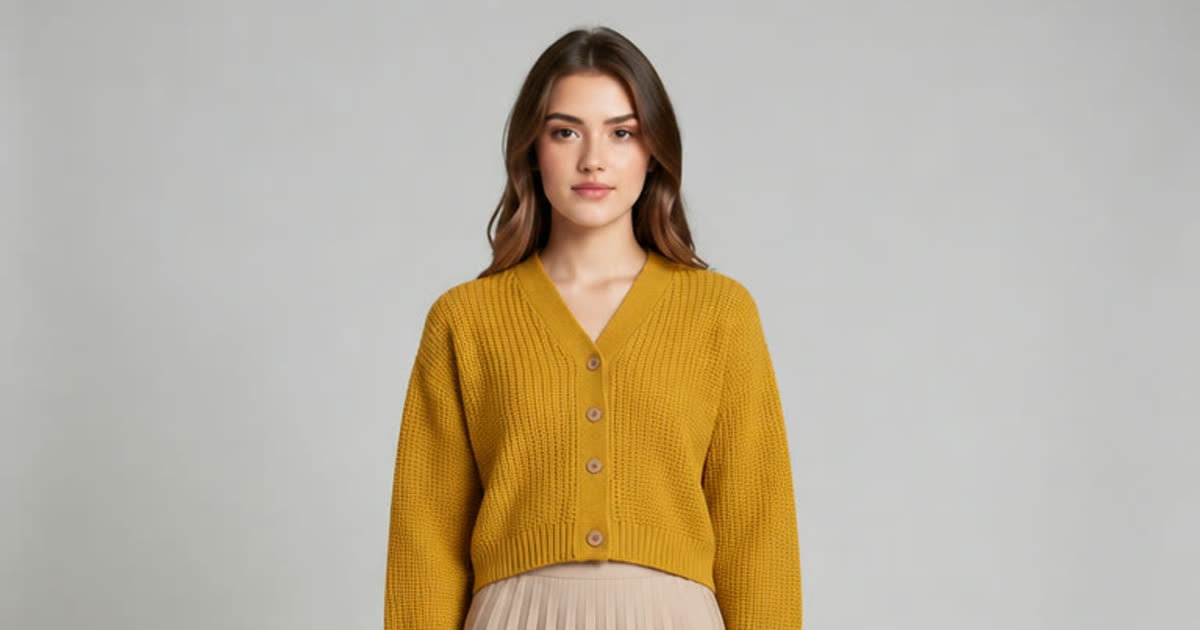
AI Clothes Changer
Try a different outfit on your own photo.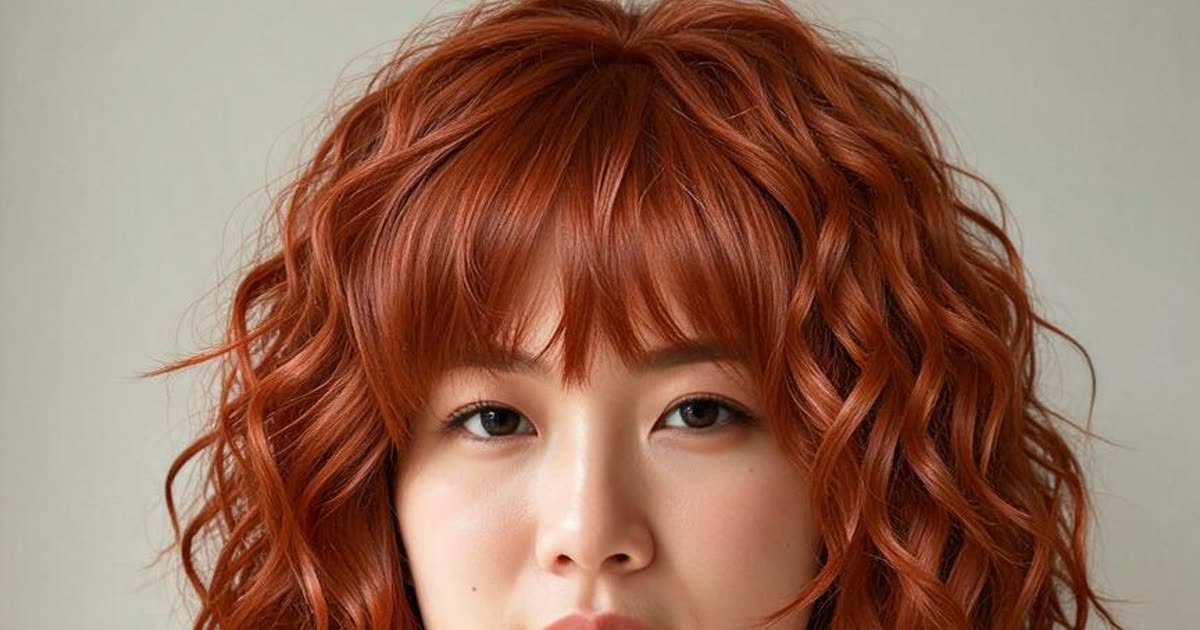
AI Hairstyle Changer
Try a new haircut or hair color on your photo.
AI Video Generator
Make a short video clip from a written idea, a photo or both, with a choice of video models.