Text to Video AI: Turn a Prompt into a Short Video, Free to Start


What turns a sentence into a clip worth watching
Text to video AI turns a sentence you type into a short video clip, like a video maker that works from words. Describe a scene, pick a model, and Plimo creates the clip from your words alone, with no photo to upload.
Start with who's in the shot and what they do
Name one subject and one action, like an old man scattering bread for pigeons on a park bench. A single clear action reads better than three things happening at once, because the clip is short. A few lines from a script work too, as long as they describe one scene.Tell the camera where to go
Add a few words about the camera: a slow push in, following from behind, holding still at eye level, looking down from above. Leave it out and the model picks a move for you.Set the light and the weather
Late golden sun, a blue neon sign seen through a wet window, grey morning fog. A phrase like these often changes the mood more than another adjective about the subject would.Ask for the sound you want to hear
On models that make sound, you can describe that too, such as rain on a tin roof, a dog barking far away or a quiet piano. Otherwise the model chooses the sound itself.
Turn a sentence into a clip on Plimo
Stay in video mode
The generator at the top of this page is already set to video, so leave the photo slot next to the prompt box empty.Describe the scene
In the box that says Describe the video you want, write a sentence or two about the subject and what it does, then add the camera and the light.Choose a model and settings
Open the model menu to switch models, set Shape and Length (and Sound, where the model has a switch), and check the Generate button, which shows how many credits this clip will use.Sign in and generate
Press Generate, and if this is your first clip, sign in through Google or an emailed code before it starts.Watch it in My creations
The clip turns up in My creations beneath the generator. Download the version you like, or choose Remake to bring the same prompt and settings back for another try.
Why use Plimo for text to video
100 free credits when you join
Every new account gets 100 credits once, enough for a six-second clip on Grok Imagine 1.5 to see how your writing turns out.Several video models in one box
Two Seedance models, Kling, Wan, MiniMax, Grok Imagine and Google's Veo all sit in the same generator. Run one sentence through two and keep the version you like.The cost is on the button
The Generate button shows how many credits this clip will take, and if a clip fails, those credits go back to your balance.A ready-made scene if you'd rather not write
Templates below the generator come with the scene already written, so you can make a clip without typing anything.Clean clips members can use for work
Members' clips have no watermark and can be used commercially, for example as a short video on your shop's page.
Video models that work from words alone
Each of these can make a clip from a written prompt with nothing uploaded; where they differ is clip length, sound and the shapes on offer.
Seedance 2.0 Mini
The default model here runs 4 to 15 seconds with sound on by default, offers the same six shapes as Seedance 2.5, and sits with Wan 3.0 among the cheapest per second.
Veo 3.1 Fast
Google's Veo is fixed at eight seconds and always has sound, so you only pick landscape 16:9 or vertical 9:16 and a resolution setting.
Seedance 2.5
Runs from 4 to 30 seconds with sound on by default, and besides 16:9, 9:16 and square it offers 4:3, 3:4 and an extra-wide 21:9 cinema shape.
Kling 3.0
Makes clips of 3 to 15 seconds in 16:9, 9:16 or square; it starts silent and costs more credits once you switch sound on.
Wan 3.0
Goes from as short as 2 seconds up to 30, has a sound switch that doesn't change the price, and accepts the longest prompts on this list.
MiniMax H3
Always adds sound, runs 4 to 15 seconds, and has a 21:9 shape alongside 16:9, 9:16, square, 4:3 and 3:4.
Grok Imagine 1.5
Always comes with sound, runs 6 to 15 seconds, has the lowest starting price per second on this list, and adds 3:2 and 2:3 shapes that the others here don't offer.
Scenes to try, and the words that get them
A rainy-day mood clip
Write “a little paper boat drifts down a flooded gutter at dusk, the camera follows close to the water” and press Generate. The sentence names the subject, the place, the light and the camera, a handy pattern to copy.A birthday clip for a friend
Write something like “a chocolate cake with lit candles on a kitchen table, the camera slowly pushes in, warm lamp light, soft party music” and send the result to the group chat on the day.Pictures for a bedtime story
If you read to your kids, turn one page into a short scene, such as “a small fox in a red scarf walks through a snowy pine forest at night, a lantern glowing ahead, the camera stays low behind it.” Reusing that description word for word on later nights helps the fox look similar.A tall clip for your phone
Set Shape to 9:16 first, then describe something that fills a tall frame, like “steam rising from a bowl of noodles at a night street stall, close-up, the camera tilts up to the cook's hands.” Close-ups and upright subjects suit a phone better than wide views.A place you remember
Describe somewhere you can't go back and film, such as “a narrow lane in summer, laundry hanging between balconies, afternoon sun, a bicycle bell ringing.” Small details like that bell often bring the feeling back.A short clip for a small business
If you sell homemade jam, try “hands wrapping a jar of apricot jam in brown paper, top-down view, soft window light.” Using it in an ad or on a shop page needs a plan.Testing a shot before you film it
Write out a shot you plan to film, such as “a camera rising slowly over a misty river at sunrise,” and check the framing before carrying any gear outside.When the scene already exists in a photo
For your dog asleep on the sofa, words alone won't reproduce the exact scene, so use image to video and let the clip start from that picture. If you'd like to settle the look first, make a still with the AI image generator and animate that.
Text to video questions
More tools for pictures and video
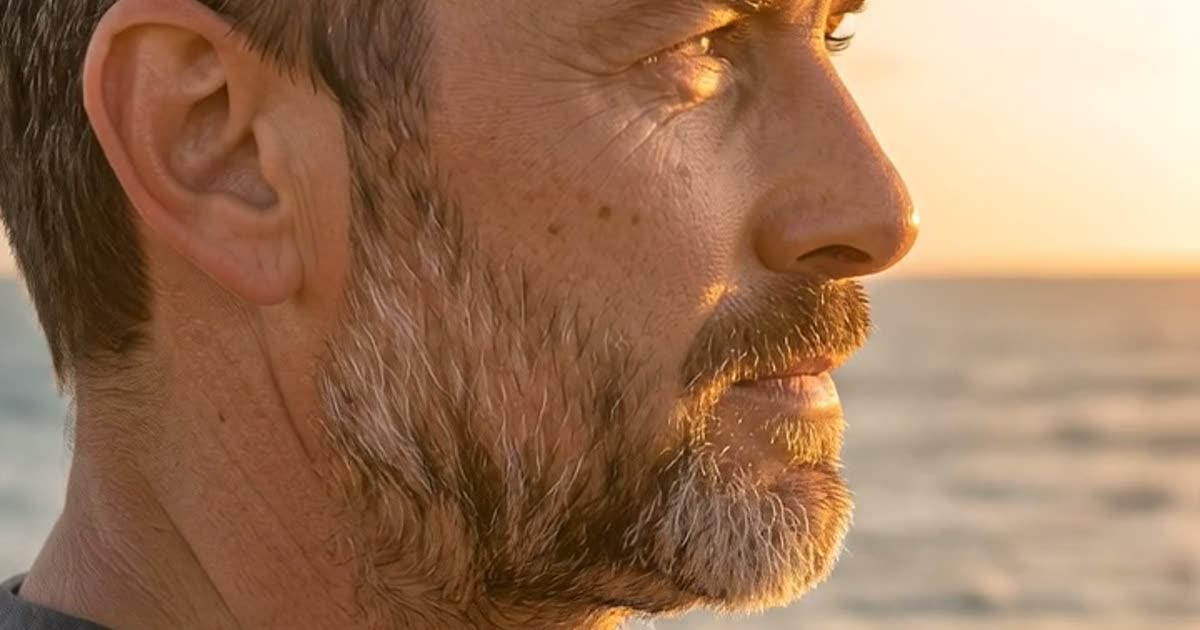
AI Video Generator
Make a short video clip from a written idea, a photo or both, with a choice of video models.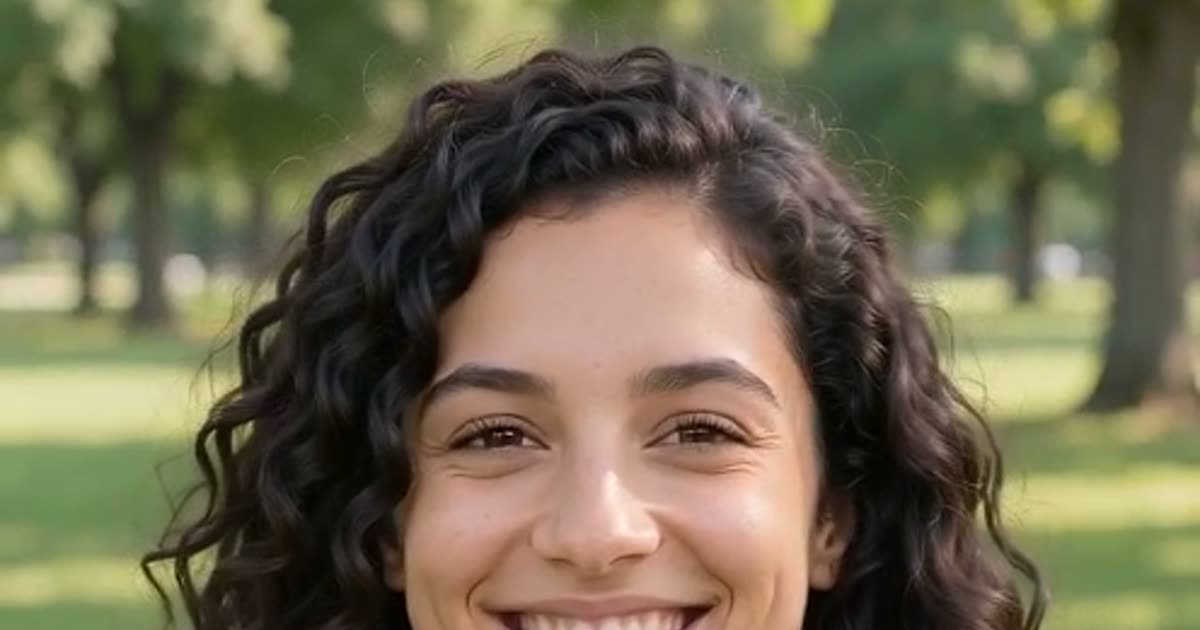
Image to Video
Bring a still photo to life with movement, camera motion and, on models that support it, sound.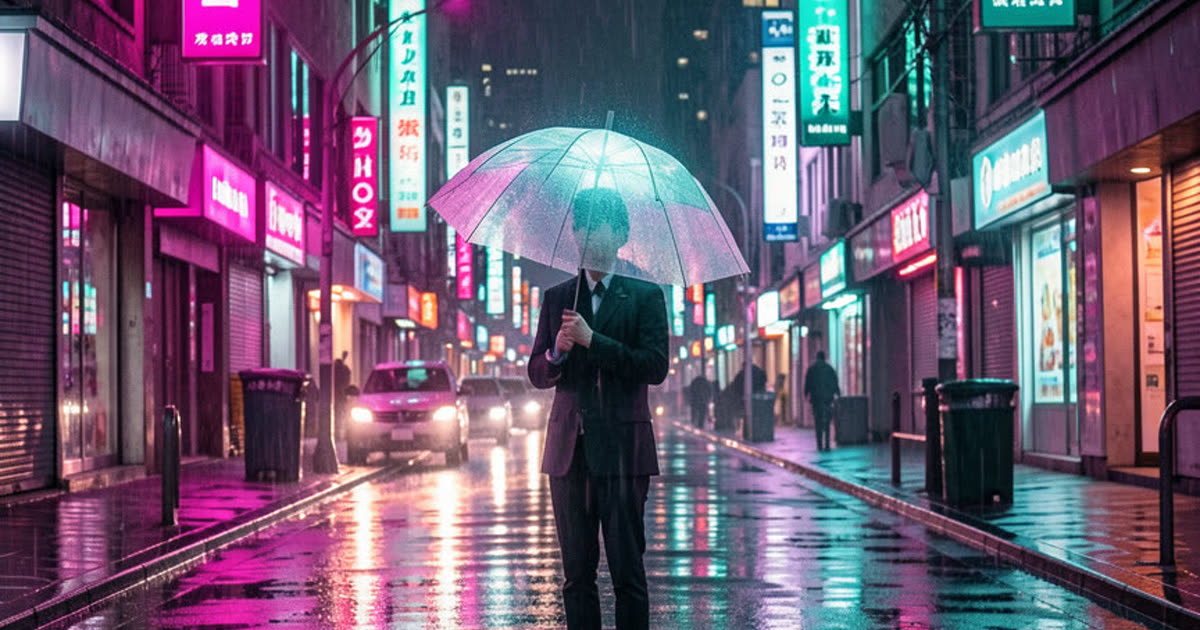
AI Image Generator
Describe a picture in your own words, add reference photos if you like, and get a brand-new image back.